Picture this: You have a high-performing money page on your website, and suddenly it falls out of Google’s index. You’ll eventually notice. Either through a sporadic GSC notification, during your monthly analytics review or when fewer leads start coming in.
But wouldn’t it be better to be alerted timely?
That’s what we’re here for.
In this walkthrough, I’ll show you how I built a solution that notifies me every Tuesday at 10:35 a.m. if an important page from my website has fallen out of the Google index.
It’s not a five-minute set up. Depending on your experience, it will take you 40 – 50 minutes to set it up. So, grab a coffee 🙂.
But once the script is running and scheduled, it works like a charm.
And the best part: it’s free if you stay within Google’s API usage limits. I’ve been looking into third-party solutions before building this. And none of the tools was cheaper than $90/month.
Requirement:
– You need a Google account with your website verified in Google Search Console.
Here’s the visualisation of what we’re going to do:
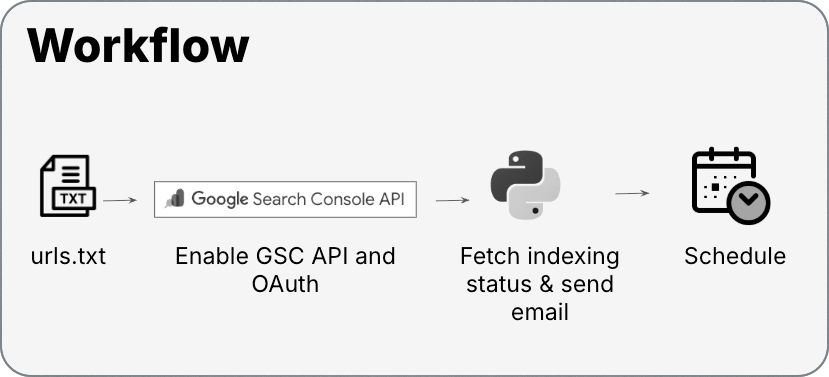
This guide is for MacOS users, (since that is what I use). If you are new to GSC API and Python, I was too. This guide will walk you through each step.
If you encounter a roadblock or have thoughts, please share via email info at corinaburri.com
I’ve been advised that stuff like this should be on GitHub 🙂. So here’s the link to the GitHub repository.
Step-by-step
- 1. Create a folder in Finder where you want to host the script and the documents
- 2. Create a .txt file with the URLs you want to monitor
- 3. Define (or create) the email address to send alert notifications from
- 4. Enable the Google Search Console API in Google Cloud
- 5. Install Python Launcher
- 6. Create .env file
- 7. Save the script
- 8. Run the script (yay!)
- 9. Automate
1. Create a folder in Finder where you want to host the script and the documents
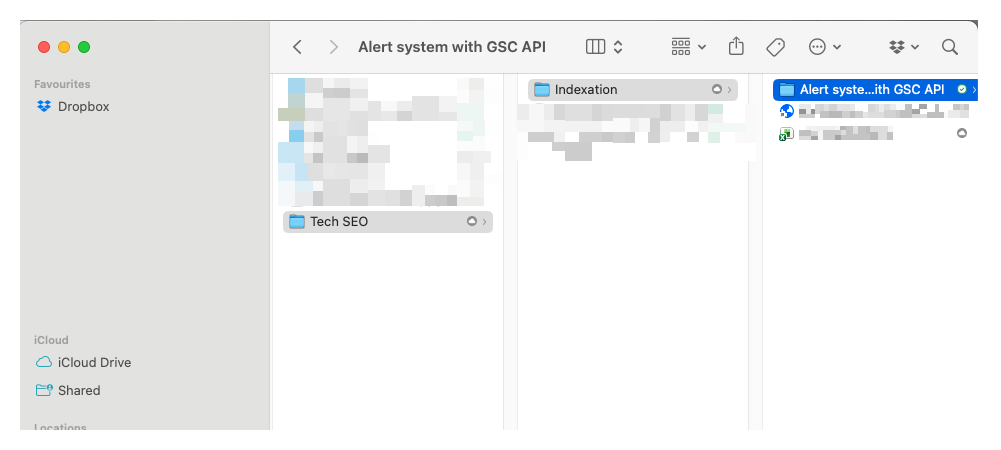
First of all, create a folder on your macOS Finder where you want to host the script and the documents. I named my folder Alert system with GSC API.
2. Create a .txt file with the URLs you want to monitor
In that same folder, create a .txt file where you will enter the URLs you want to monitor, one URL per line. I called the file urls.txt.
You can also download a sample file from my GitHub repository.
Personally, I added the following page types:
- Money pages: Pages with high transactional intent.
- High-performing blog articles.
Here’s how the content of this file could look:
https://yourdomain.com/money-page-1/
https://yourdomain.com/money-page-2/
https://yourdomain.com/money-page-3/
https://yourdomain.com/blog/article-1/
https://yourdomain.com/blog/article-2/
https://yourdomain.com/blog/article-3/
...
https://yourdomain.com/non-existing-url-to-test-the-whole-thing/
There are many ways to fetch the URLs. You can check your sitemap, do a Screaming Frog crawl, or you could also get them from Google Search Console: → Pages (Indexing) → Export.
At the end of the list, I added a non-existent URL like https://yourdomain.com/non-existing-url-to-test-the-whole-thing. This way, you receive a notification every week that this non-existent URL is not in the Google index. Which is expected behaviour, since the page doesn’t exist.
I only added this non-existent URL a couple of weeks after I’ve set this alert up. I didn’t receive any notifications and wasn’t sure whether the script was still running. It was running, but all pages were indexed, so there was nothing to notify me on.
3. Define (or create) the email address to send alert notifications from
Next, I suggest creating a dedicated email address from which you will send the alerts. You could use your standard email address. Personally, I preferred to use a dedicated email address as it would make troubleshooting easier, should issues arise. I created a dedicated email address under my domain. I named it gsc-alert at corinaburri.com
But you can also set-up an email address with email service. If you go with Gmail, there are two things to consider:
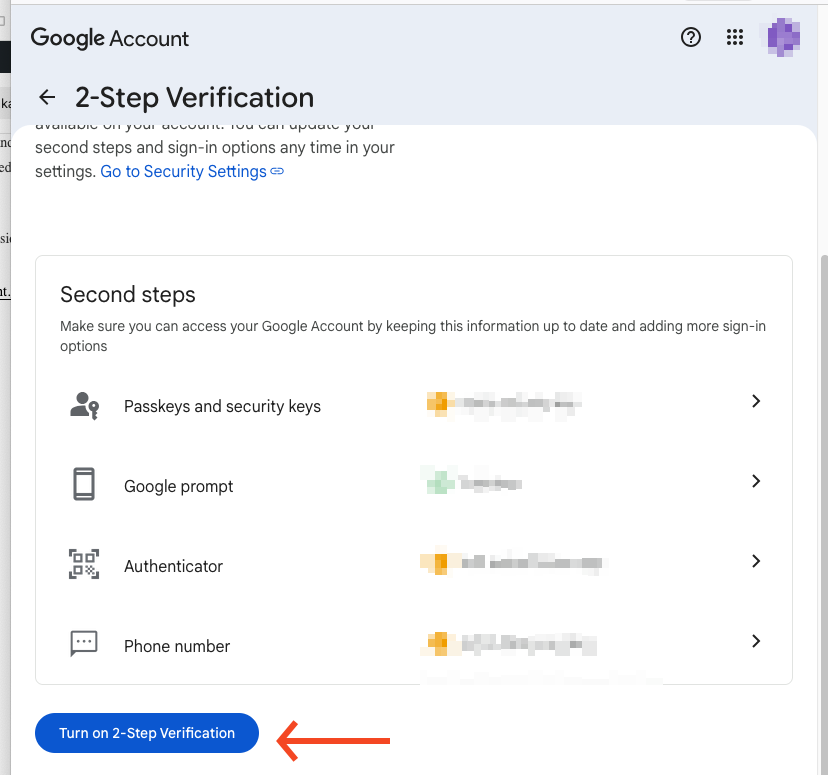
- 2-Step Verification must be enabled on your Google account. You can enable it here: https://myaccount.google.com/security
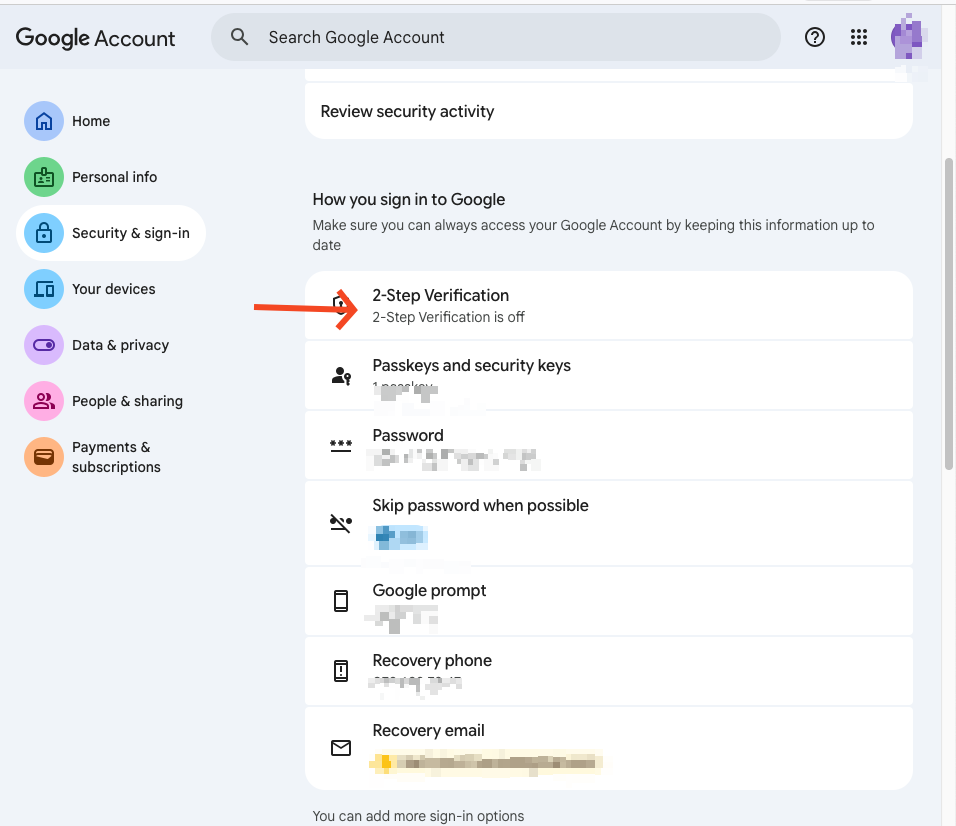
And then click on Turn on 2-Step Verification
- You then must create an App Password, (this is not your normal Google password). Go to https://myaccount.google.com/apppasswords, create a name e.g. GSC Alert, click on Create
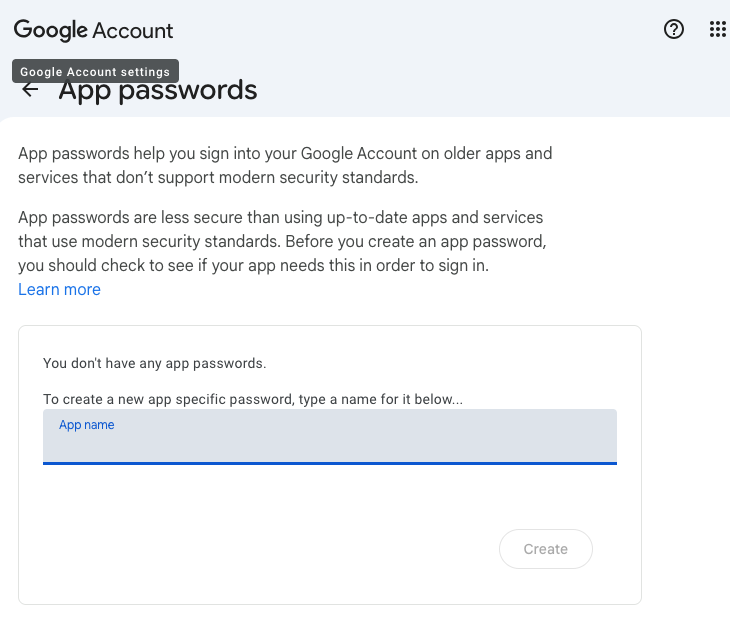
- Save this password. You will need this App Password in step 6 as your SENDER_PASSWORD in the .env file.
4. Enable the Google Search Console API in Google Cloud
Alright, this is a long part. We will enable GSC API, set up OAuth and download the credentials needed.
4.1 Go to Google Cloud and click on Console on the top right
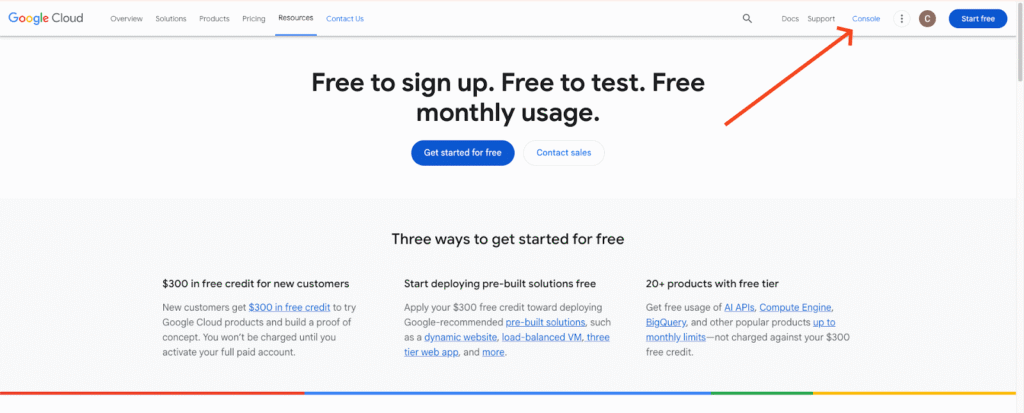
4.2 Click on Select a project
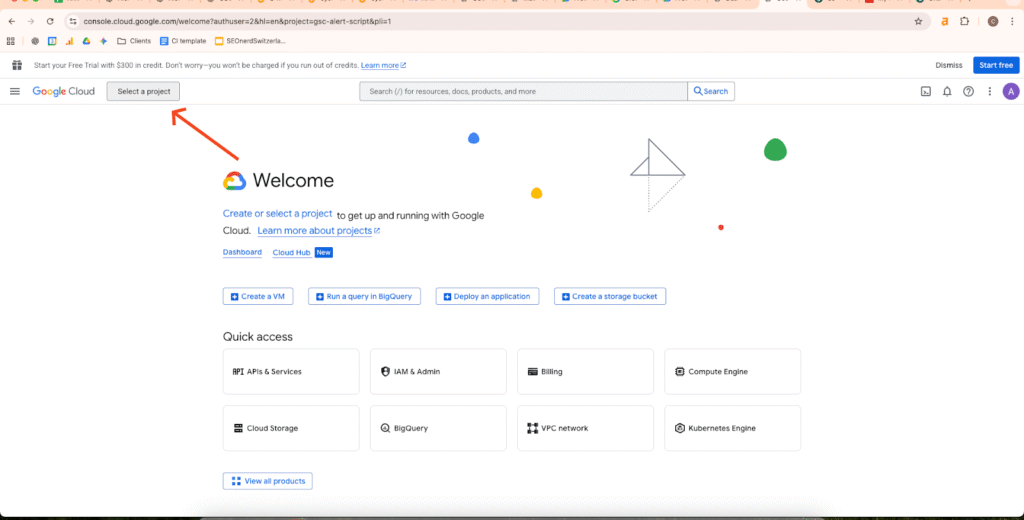
4.3 And then New project and add a Project name (e.g. GSC Alert). Name needs to have between 4 and 30 characters. You can leave the location as “no organization” is. Click on Create
4.4 In the left hamburger menu go to APIs & Services > Library
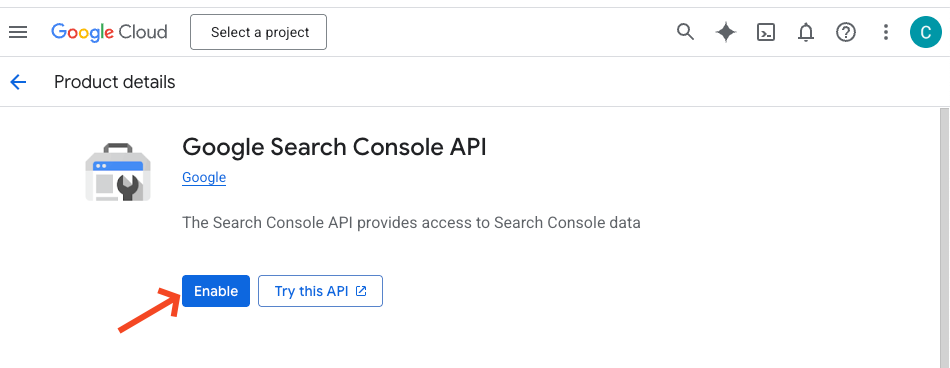
4.5 Search for Google Search Console API and click on the icon
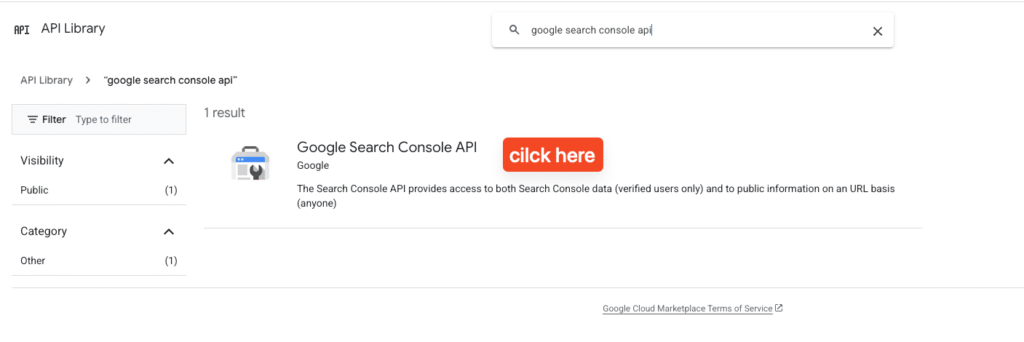
Once clicked, select Enable
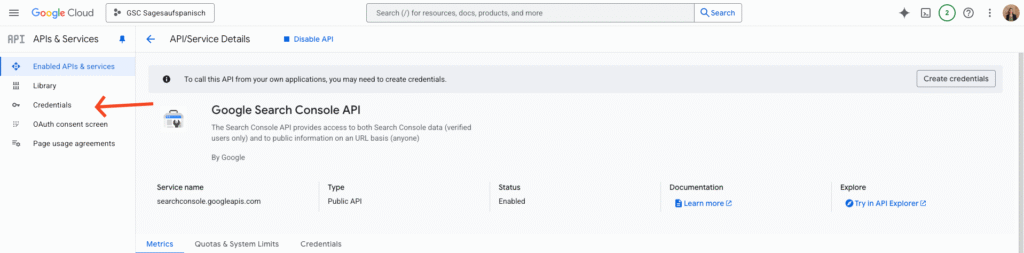
4.7 In the left hand menu you will see Credentials. If not select APIs & Services > Credentials
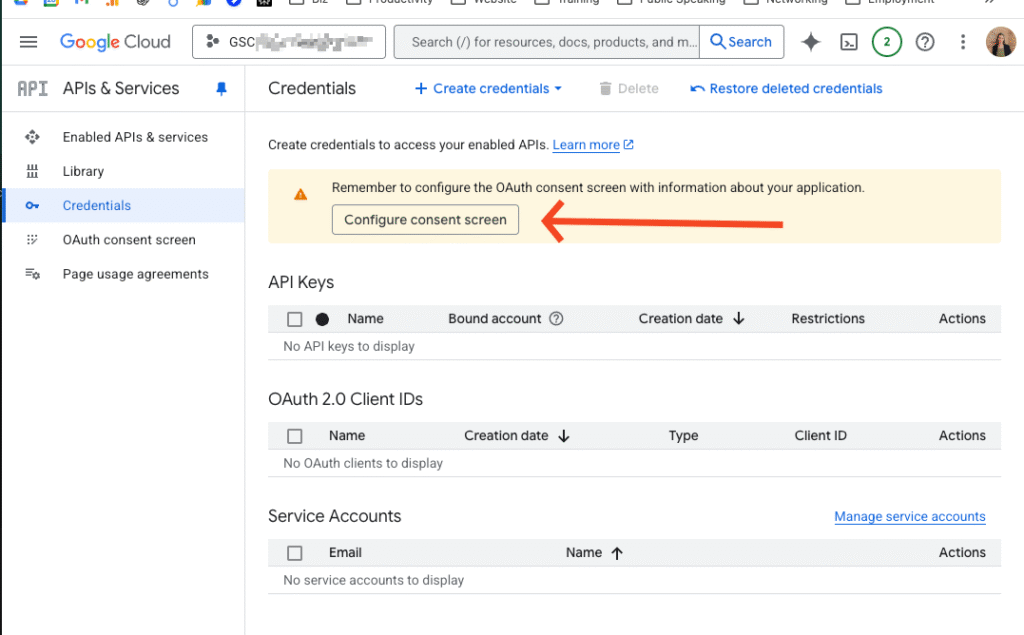
4.8 Click on Configure consent screen
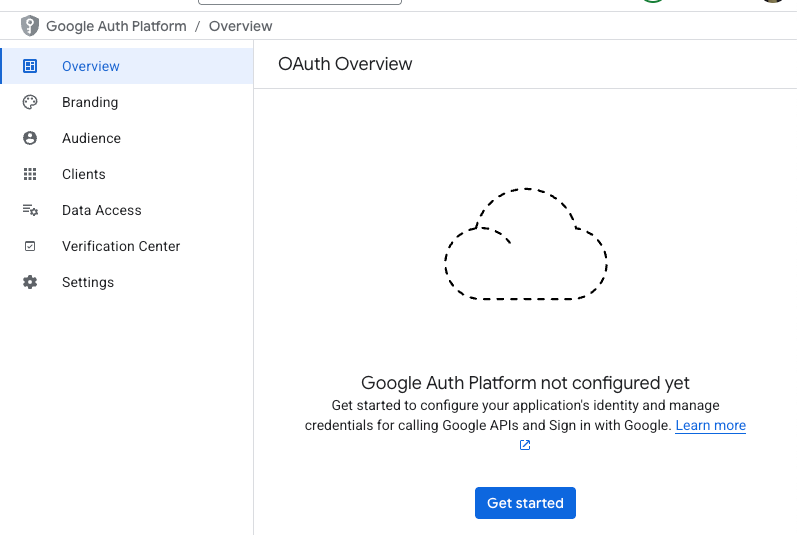
4.9 You will get to the OAuth Overview window where you click Get started
4.11 App name (e.g. Indexing alert).
4.12 User support email = the Google email of the account you’re signed in. It will appear in the dropdown
4.13 Audience: External (if you have chosen No organization in step 4.3)
4.14 Contact information: your standard email address (Google will use this email address to notify you about any changes to your project.)
4.15 Finish: activate checkbox to agree Google API Services: User Data Policy, Click Continue and then Create
4.16 Now click on Create OAuth client
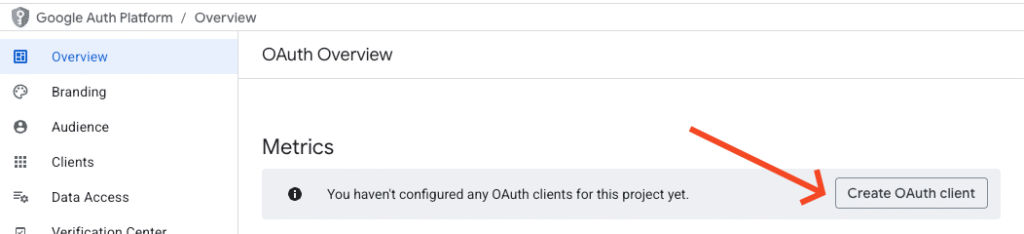
4.19 Application type = Desktop app
4.20 Name = e.g. Desktop Client 1. and click Create
4.20 A pop-up will appear with Download JSON → download it, click OK
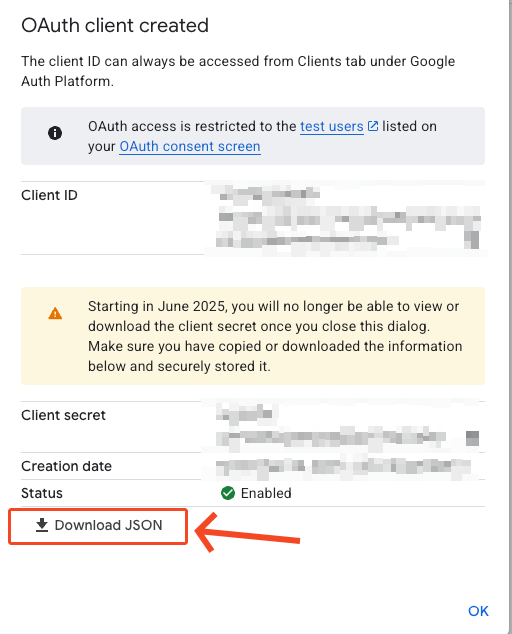
4.21 Rename it to credentials.json. and put it in the folder you have created in Step 1, do not share this file publicly.
4.22 You will need to add test users now. Head to Audience, scroll to Test users → add the email address that has access to the Google Search Console property you want to monitor and click Save
Congrats, you’ve made it through the most time-intensive step. 🙂
5. Install Python Launcher
First, let’s check if python is already installed on your machine:
5.1 Open the Terminal with Command + Space, type Terminal, and hit Enter.
5.2 Run python3 --version
If you see a Python version starting with 3 (e.g., 3.11.9), you’re good to go. If you see an error like python3: command not found, you’ll need to download Python.
5.3 To install the libraries open Terminal and runpip3 install google-auth google-auth-oauthlib google-auth-httplib2 google-api-python-client
6. Create .env file
Now we create an .env file to not have confidential data hardcoded in the script. A big shout-out to Rei Wakayama, whom I met through Women in Tech SEO for suggesting that. (Also, I think you should hire her)
6.1 First, you have to install python-dotenv. Open Terminal an run pip install python-dotenv
6.2 Create an .env file in the folder you have created in step 1. I created a .txt file and then changed the ending to .env. I encountered the following two roadblocks with macOS:
a) The .env file was hidden in the finder by default. You have to press Cmd + Shift +. to view .env files.
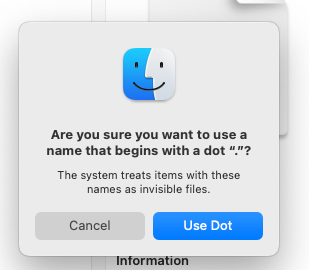
b) macOS per default adds untitled as filename. So you will inevitably have a untitled.env. But you can rename it an delete the untitled to have .env. There will be the below error message where you have to say Use Dot.
6.3 Add the following content to the .env file
SMTP_SERVER=smtp.example.com
SMTP_PORT=465
SENDER_EMAIL=you@example.com
SENDER_PASSWORD=supersecretpassword
RECIPIENT_EMAIL=alert@example.com
SITE_URL=https://yourdomain.com/
6.4. On SMTP_SERVER SMTP_PORT, SENDER_EMAIL, SENDER_PASWORD, RECIPIENT_EMAIL, SITE_URL insert your credentials. Do not share this file publicly. Remember, if you are with Gmail for the password you need to insert the App password you have created in step 3.
7. Save the script
7.1 In the folder you have created in step 1, create a python file. I have named mine gsc_alert.py (You can also directly download the script from GitHub)
7.2 Add the below code to the file
import os
import smtplib
from email.mime.text import MIMEText
from google.oauth2.credentials import Credentials
from google_auth_oauthlib.flow import InstalledAppFlow
from googleapiclient.discovery import build
from google.auth.transport.requests import Request
from dotenv import load_dotenv
load_dotenv()


# -----------------------
# CONFIGURATION
# -----------------------
SMTP_SERVER = os.getenv("SMTP_SERVER")
SMTP_PORT = int(os.getenv("SMTP_PORT", 465))
SENDER_EMAIL = os.getenv("SENDER_EMAIL")
SENDER_PASSWORD = os.getenv("SENDER_PASSWORD")
RECIPIENT_EMAIL = os.getenv("RECIPIENT_EMAIL")
SITE_URL = os.getenv("SITE_URL")

SCOPES = ["https://www.googleapis.com/auth/webmasters.readonly"]

# -----------------------
# LOAD URLS FROM FILE
# -----------------------
import os

script_dir = os.path.dirname(os.path.abspath(__file__))
with open(os.path.join(script_dir, "urls.txt"), "r") as f:
    URLS = [line.strip() for line in f if line.strip()]

# -----------------------
# AUTHENTICATION
# -----------------------

def get_gsc_service():
    creds = None
    if os.path.exists("token.json"):
        creds = Credentials.from_authorized_user_file("token.json", SCOPES)
    if not creds or not creds.valid:
        if creds and creds.expired and creds.refresh_token:
            creds.refresh(Request())
        else:
            flow = InstalledAppFlow.from_client_secrets_file("credentials.json", SCOPES)
            creds = flow.run_local_server(port=0)
        with open("token.json", "w") as token:
            token.write(creds.to_json())
    return build("searchconsole", "v1", credentials=creds)

# -----------------------
# CHECK INDEXATION
# -----------------------
def check_urls(service, urls):
    problem_states = [
        "URL_NOT_INDEXED",
        "BLOCKED_BY_ROBOTS",
        "INDEXING_BLOCKED",
        "INDEXING_STATE_UNSPECIFIED"
    ]

    not_indexed = []
    for url in urls:
        try:
            request = {
                "inspectionUrl": url,
                "siteUrl": SITE_URL
            }
            result = service.urlInspection().index().inspect(body=request).execute()
            index_result = result["inspectionResult"]["indexStatusResult"]
            status = index_result.get("indexingState", "UNKNOWN")  # e.g., INDEXED, INDEXING_ALLOWED
            reason = index_result.get("reason", "")  # optional extra info

            # Only show URLs with a problem
            if status in problem_states:
                print(f"{url} → {status} {f'({reason})' if reason else ''}")
                not_indexed.append((url, f"{status} {f'({reason})' if reason else ''}"))

        except Exception as e:
            print(f"Error with {url}: {e}")
            not_indexed.append((url, "Error"))

    return not_indexed

# -----------------------
# SEND EMAIL
# -----------------------
def send_email(urls):
    if not urls:
        print("All URLs are indexed ✅ No email sent.")
        return


         # Count the number of not-indexed URLs
    not_indexed_count = len(urls)

    body_lines = [f"⚠️ The following {not_indexed_count} URLs are not indexed:\n"]
    for url, status in urls:
        body_lines.append(f"{url} → {status}")

    body = "\n".join(body_lines)

    msg = MIMEText(body)
    msg["Subject"] = f"Indexation Alert: {not_indexed_count} URLs are not indexed - Google Search Console"
    msg["From"] = SENDER_EMAIL
    msg["To"] = RECIPIENT_EMAIL

    try:
        with smtplib.SMTP_SSL(SMTP_SERVER, SMTP_PORT) as server:
            server.login(SENDER_EMAIL, SENDER_PASSWORD)
            server.sendmail(SENDER_EMAIL, RECIPIENT_EMAIL, msg.as_string())
        print("Email sent successfully ✅")
    except Exception as e:
        print("Error sending email:", e)


# -----------------------
# MAIN
# -----------------------
if __name__ == "__main__":
    service = get_gsc_service()
    not_indexed = check_urls(service, URLS)
    send_email(not_indexed)
8. Run the script (yay!)
It’s showdown time. Let’s run the script now 🙌
8.1 Navigate to the folder with your script.
8.2 Open the Terminal and type python3 gsc_alert.py and hit enter (the script will run now)
Alternatively, you can run it from any location if you include the full path. cd "/Users/yourname/Documents/gsc-alert/"
python3 gsc_alert.py
Side note: How to find the full path on macOS?
1. Open the folder you created in step 1 in the Finder
2. Right-click the file gsc_alert.py
3. Hold Option → you’ll see “Copy as Pathname”
4. Click it, then paste the result in Terminal, for example: /Users/yourname/Documents/gsc-alert/gsc_alert.py
Authentication (first time only)
8.3 If you run the script for the first time you will need to authenticate your Google account. After running the script a window similar to the below will appear. Choose the Google account that has access to the Google Search Console property you want to monitor.
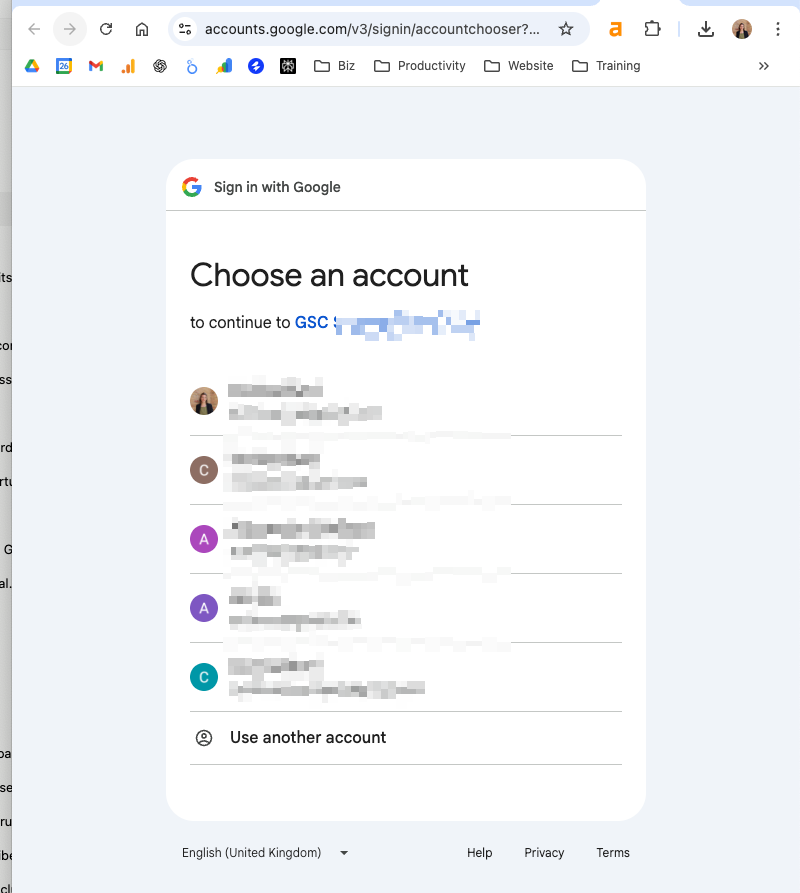
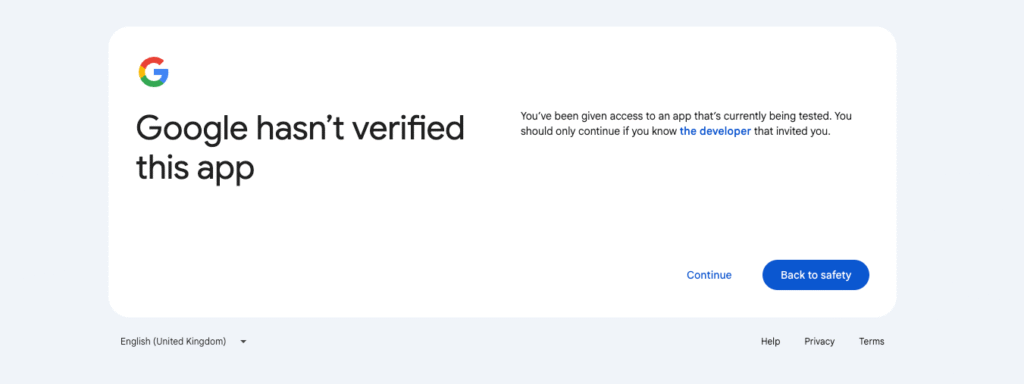
8.4 There will be a warning, click on Continue.
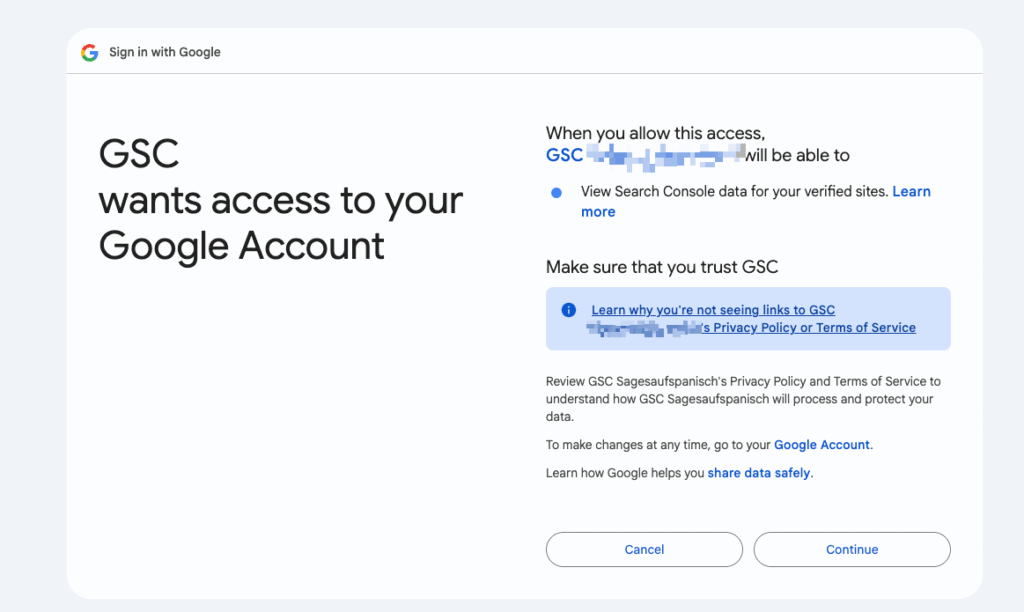
8.5 You will need to grant access again. Click on Continue
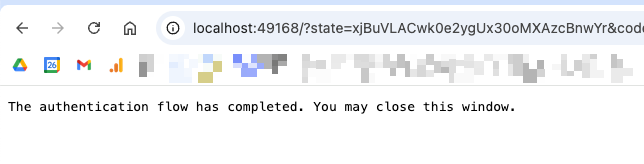
8.6 There will be the message “The authentication flow has completed. You may close this window.” You can close the window 🙂.
8.7 Now re-rund the script. Open Terminal cd "/Users/yourname/Documents/gsc-alert/"
python3 gsc_alert.py
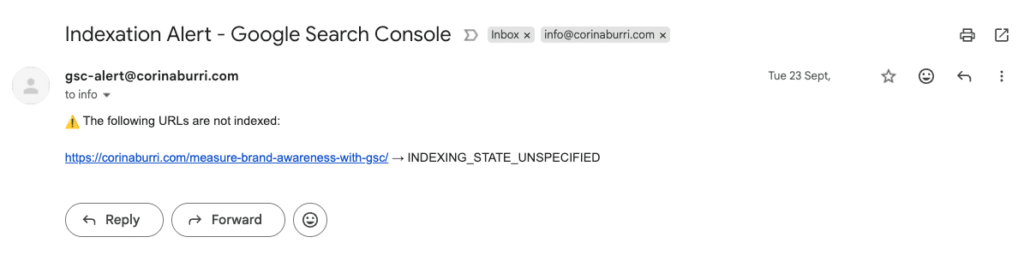
8.8 You should recive an email like the below to your inbox
Should you encounter issues in this step. I suggest to troubleshoot with ChatGPT or Gemini. That’s what I did. 🙃. Copy pasting error messages helped! Feel free to reach out to me as well in case AI was not helpful. 🙂
9. Automate
Now you have to automate the execution of the script.
I will explain how I did it with cronjob, since I’m on macOS. If you are on Windows, you can use Windows Task Scheduler. Rei Wakayama explains both, cronjob and Windows Task Scheduler, in detail in her blogpost: “How to Schedule a Python Script to Run Daily (Windows/Mac)“
Personally, I want the script to be run every Tuesday at 10:35 am. That’s when I’m at my desk after coffee break and can quickly submit pages for re-indexing, should they have been deindexed.
This thread on stackoverflow helped me to understand the crontab data format. For Tuesday 10:35 am every week the format is 35 10 * * 2
9.1 To set it up, open Terminal and open crontab with crontab -e
9.2 Press i to enter insert mode
9.3 Add following cron command, including the path to Python, the path to your script, and the log file:35 10 * * 2 /usr/bin/python3 /Users/yourname/Path/To/Your/Folder/gsc_alert.py >> /Users/yourname/gsc_alert.log 2>&1
9.4 Press Esc, then type :wq
9.5 Hit enter to save an close
9.6 To double-check that your cron job was saved correctly, run: crontab -l and you should see the cron job there.
Please note: Cron job and windows scheduler need your machine to be running on the specific time. If you wish to run it independently of your machine, you may check AppScript or automation with GitHub. To my use case, running it local on my machine was sufficient.
That’s it🥳! You have successfully set-up the deindexing alert.
Feel free to contribute on GitHub or leave a comment. I’m also very keen to learn from ✨you✨. If you have built something with GSC API, I’d love to learn from you.
And I’m an SEO Consultant, you can hire me. I invite you to send an e-mail or schedule a free discovery call.
